Use Third-Party PWA Services in AIO
Introduction
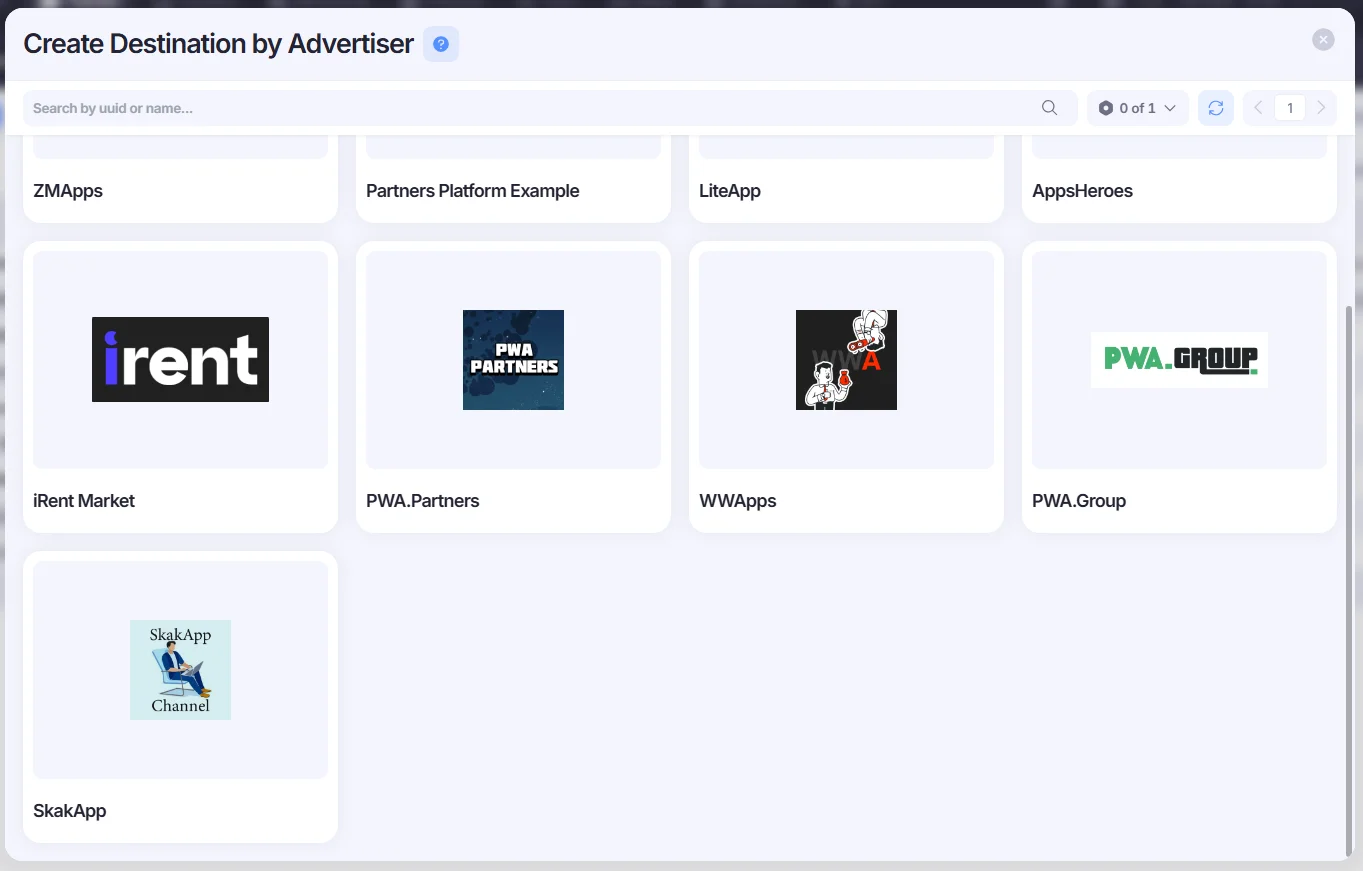
This guide explains how to work with third-party PWAs in AIO. By default, your Tenant includes several preconfigured advertisers, such as ZM Apps, LiteApp, AppsHeroes, iRent Market, PWA Partners, WWApps, PWA.Group, and SkakApp.
If you need to add another service, you can contact our support team.
How to Use 3rd-Party PWA in AIO
To launch traffic to a third-party PWA, you must:
- Add a PWA Destination (a destination with a PWA domain)
- Add an Offer Destination (the final destination where visits will be redirected after the PWA is installed)
- Install postbacks for your PWA service in AIO and configure AIO postbacks on the casino side to receive conversion data. The postback flow will work as follows: Casino → AIO → PWA Service
Let’s go through each step in detail.
1. Add a PWA Destination
- Go to the Destinations section. Click the +Destination button and select By Advertiser.
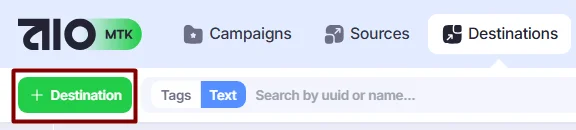
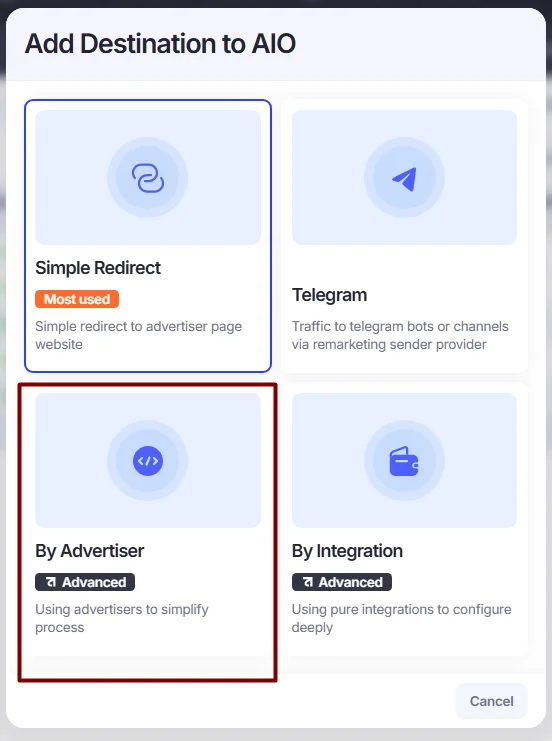
- Select your PWA service from the list of existing Advertisers.
*If your PWA service has not been added yet, you can contact our support team or add it yourself using this guide: Create Advertisers.
- Insert a PWA domain into the Redirect URL field. All other parameters will be automatically added to the URL from the advertiser template.
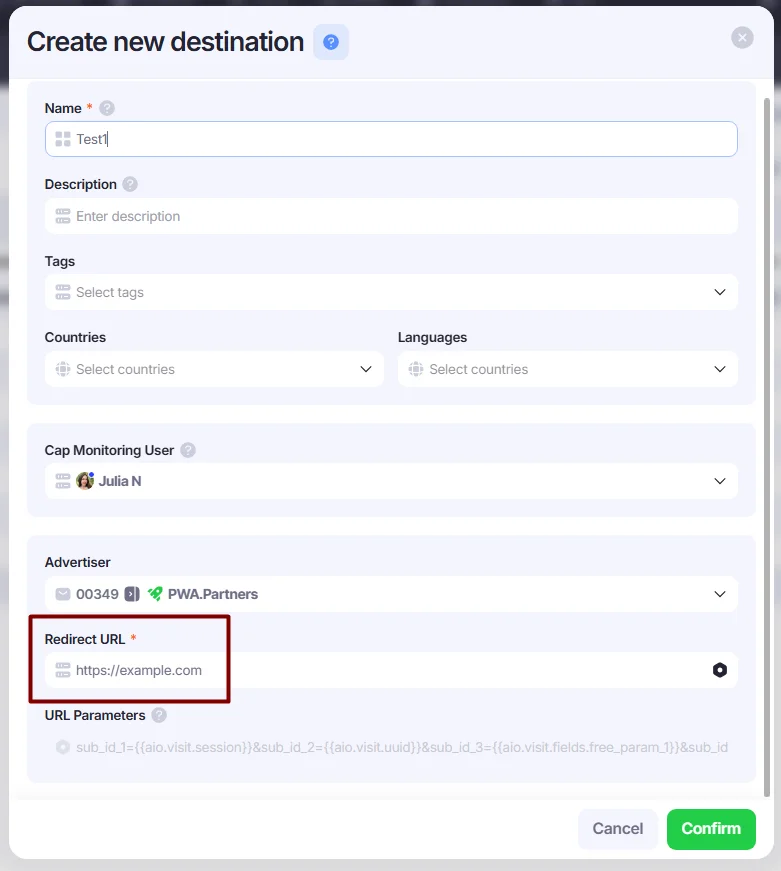
- Click Confirm to save your PWA destination.
2. Add an Offer Destination
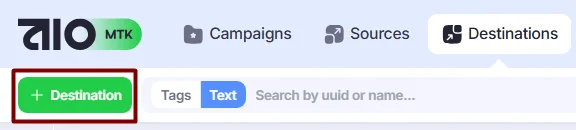
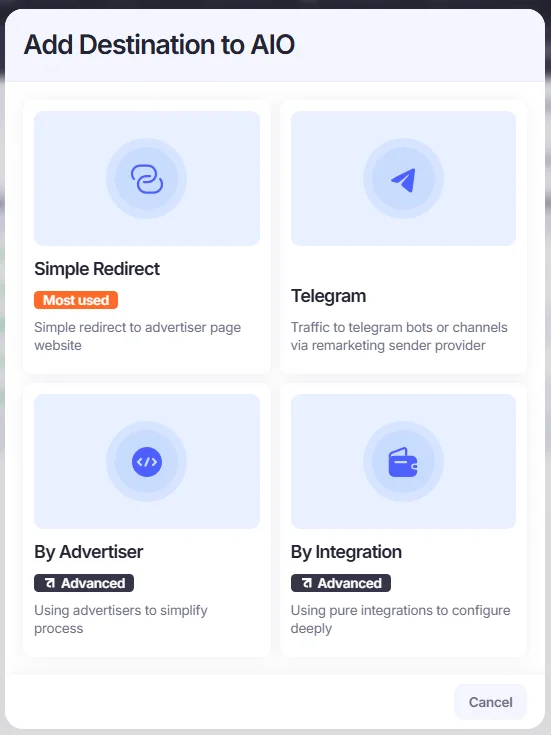
- Go to the Destinations section. Click the +Destination button and select Simple Redirect if you don’t have a preconfigured template in Advertisers for your casino, or By Advertiser if you do.
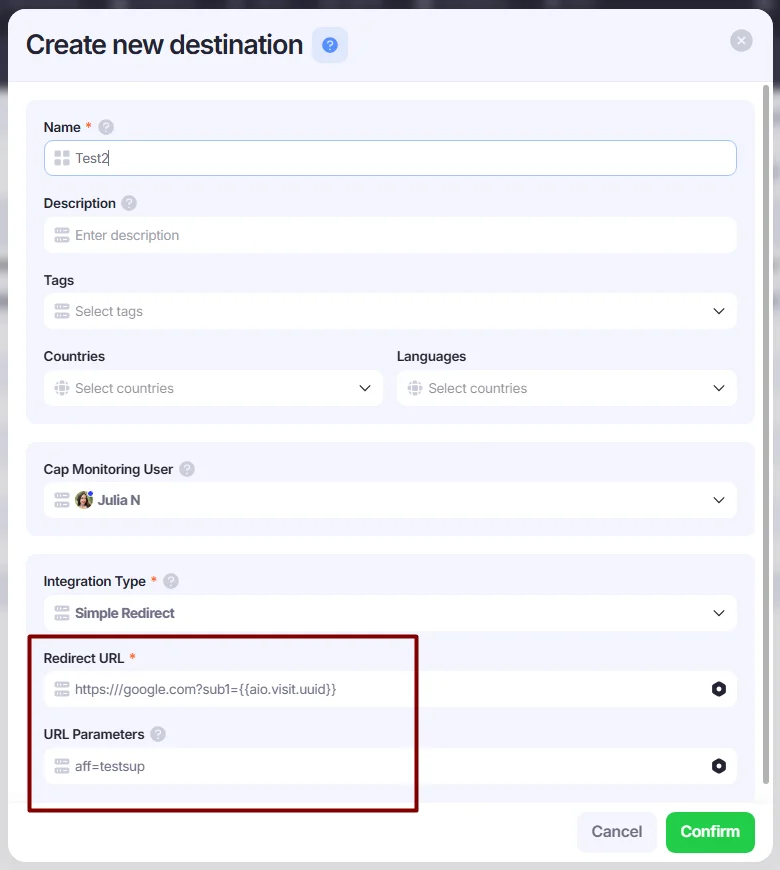
- In the Create New Destination window, enter your redirect URL and parameters. The Click ID in AIO is called Visit UUID and is available via the
{{aio.visit.uuid}}placeholder.
If you use the By Advertiser option, the parameters will be automatically added to the URL from the advertiser template.
*To learn how to add Advertisers to AIO, please refer to this guide: Create Advertisers.
- Click Confirm to save your Offer destination.
3. Add Postbacks
To connect PWA service, AIO, and casino, you must install postbacks for your PWA service in AIO and configure AIO postbacks on the casino side.
Install PWA Postbacks to AIO
- Go to Settings→Trackers. Click the +Tracker button.

- Select HTTP GET as the tracker type.
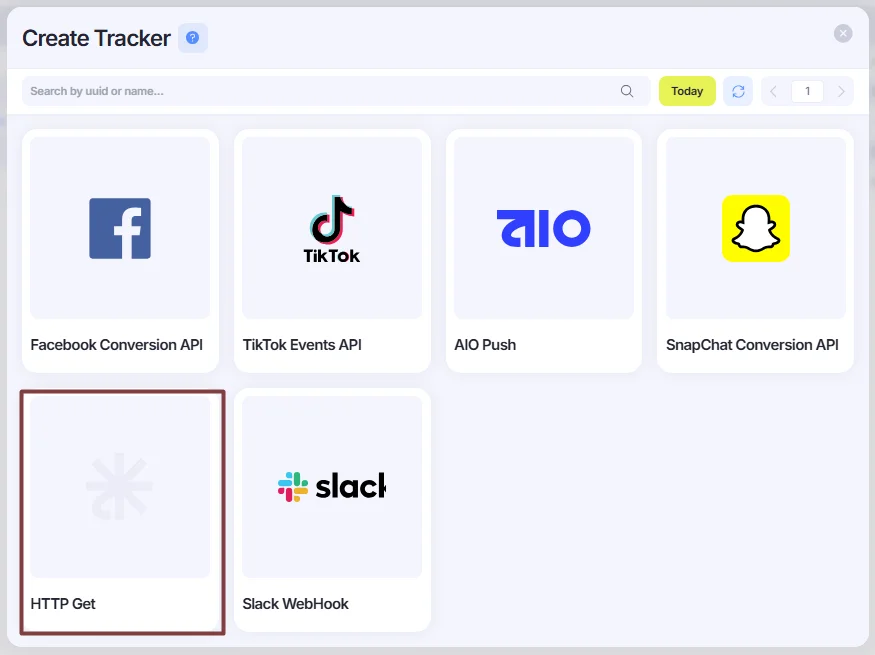
- Fill in the fields:
- Sources: select 3rd Party PWA Link Generator (recommended by default, as this source includes all third-party PWA services)
- Conversion Type: select the conversion type that should trigger the postback
- URL: Paste the postback URL. Make sure to replace the required macros with the appropriate AIO placeholders.
*PWA Click ID is available via the {{aio.visit.fields.pwa_click_id}} placeholder.
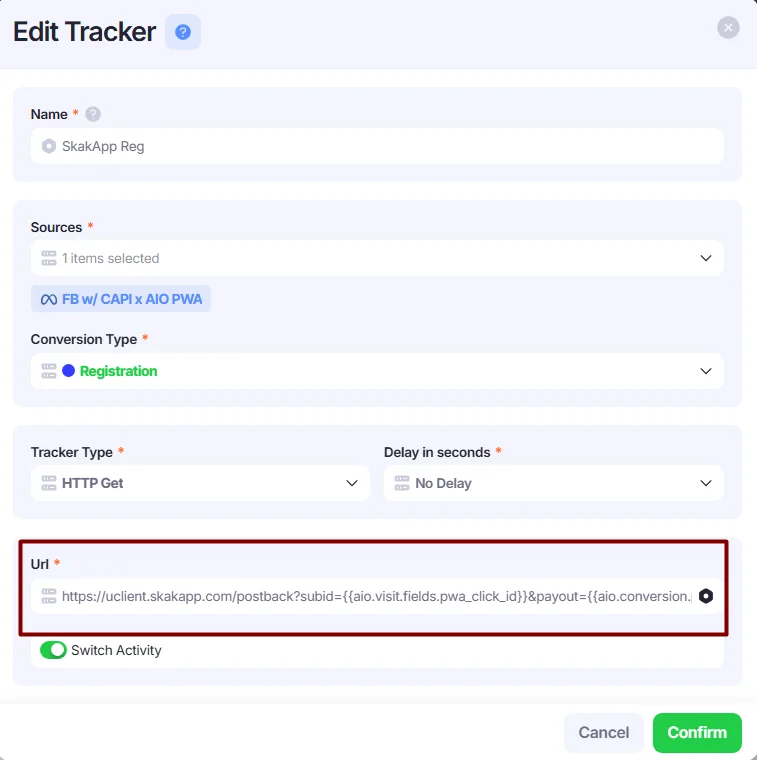
- Click Confirm to save your postback.
Install AIO Postbacks to Casino
To receive conversion data in AIO, provide AIO postback URLs to the casino service. If you don’t have the URLs yet, see: Work with Postbacks.
4. Create a Campaign
- Open the Campaigns section. Click the +Campaign button.
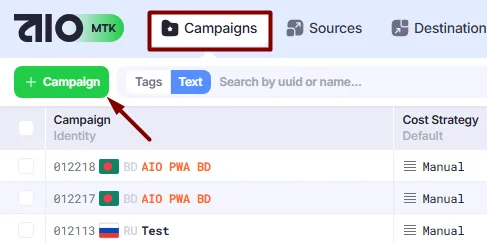
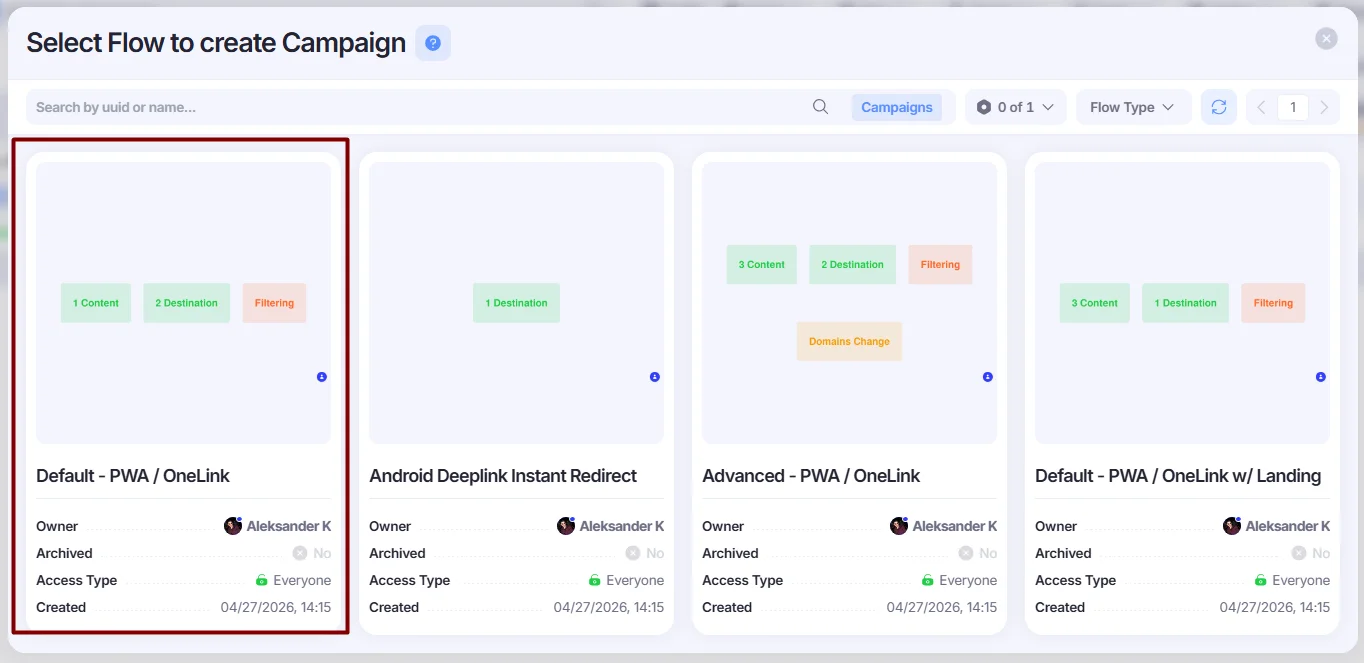
- Select the Flow from the available Flow options:
PWA / OneLink Flow Default— for the default flow: AIO → PWA → Casino
PWA / OneLink w/ Landing— if you want to add a landing page before redirecting the visitor to the casino
- Fill in the campaign details (Name, Description, etc.) and the available Campaign steps:
- Destination — select a PWA Destination you created earlier
- Offer — select an Offer Destination you created earlier
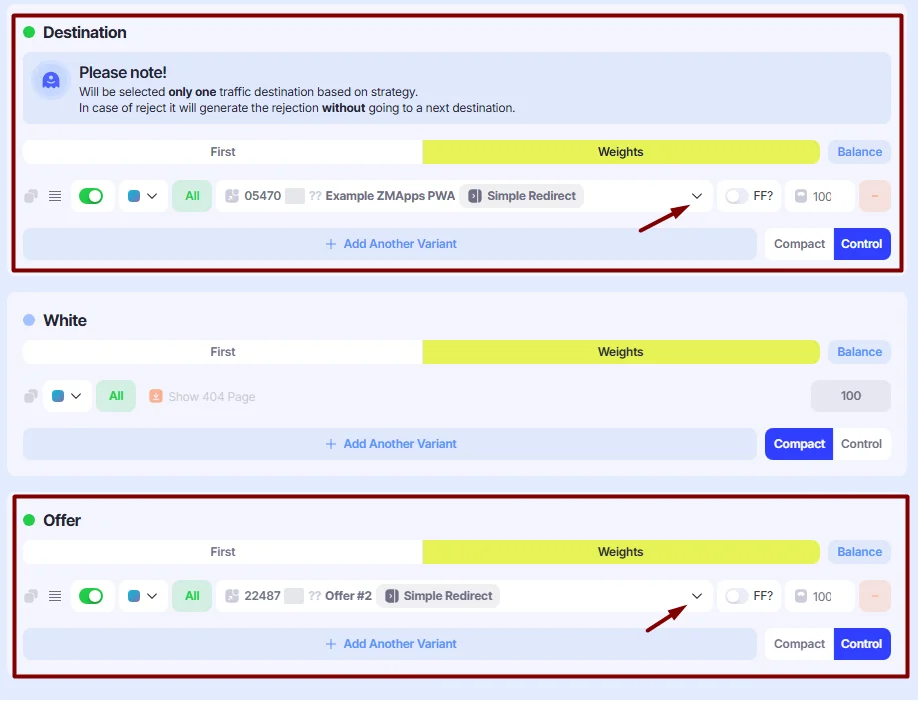
- Once you’ve completed the setup, click the Save button. Now, let’s generate links.
*For more details on creating campaigns, see: Set Up a Campaign.
5. Generate Tracking Links
Now you need two links: one for the PWA service and one for your Source.
How to Generate a PWA Link
- Access the Link Generator in any of the following ways:
- Right-click a Campaign and select Link Generator
- Open it from the Edit Campaign window → Link Generator / Link Source
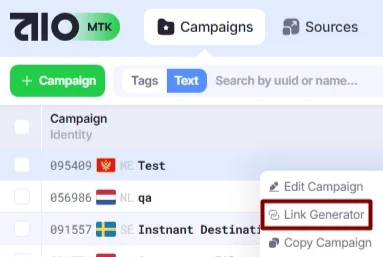
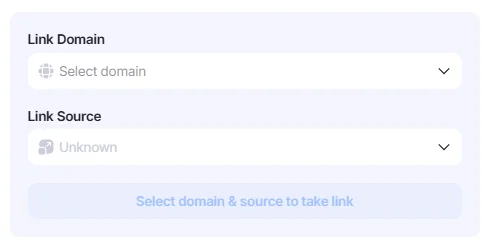
- Select the domain and choose 3rd Party PWA Link Generator as the Source, then click Generate Link.
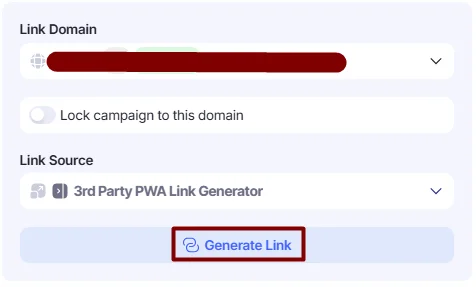
- Copy the PWA link for your service and insert it into the PWA service as an offer link.
*If your service is not included in the template, please contact our support team.
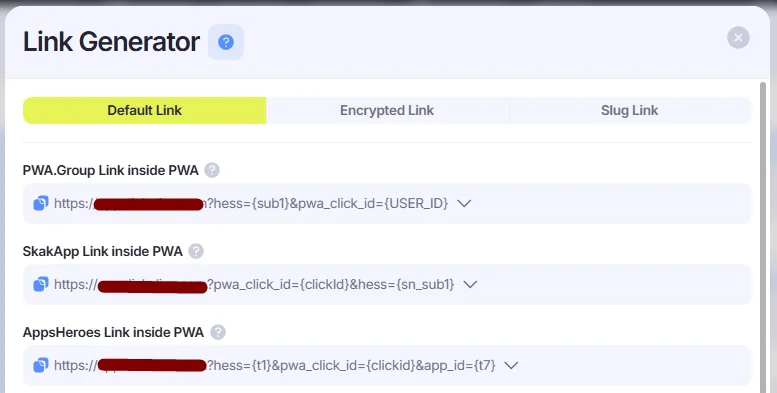
Once the PWA Link is installed inside PWA, you can generate a tracking link and launch your Campaign.
How to Generate a Tracking Link
- Access the Link Generator in any of the following ways:
- Right-click a Campaign and select Link Generator
- Open it from the Edit Campaign window → Link Generator / Link Source
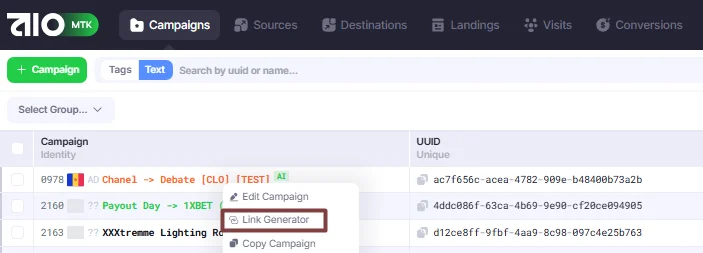
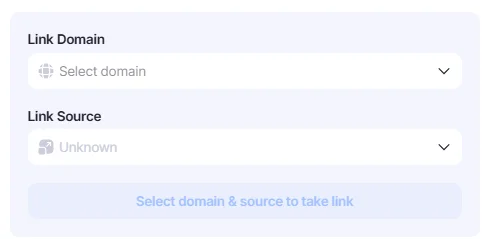
- Select a domain and choose a Source. Fill in the fields associated with the selected Source, then click Generate Link.
*If you are using Facebook, select FB w/ CAPI – DEFAULT, which is already included in your Tenant. If you need to add other Sources, please contact our support team.
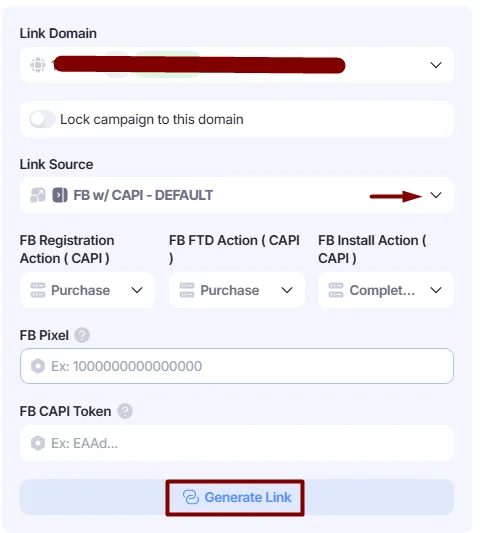
- Paste the tracking link into your Source — and you’re ready to go.
FAQ
What Is the Visit Flow for AIO and Third-party PWA Services?
PWA / OneLink Flow Default works as follows: a user clicks an ad in Facebook (or any other source) → is redirected to the PWA destination → installs the PWA → returns to the AIO flow → is redirected to the Offer destination.
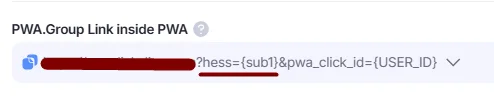
We use the hess parameter to return the visit back to the correct flow; it is included in PWA links.
Can I Split Multiple PWA Services Within a Single Campaign?
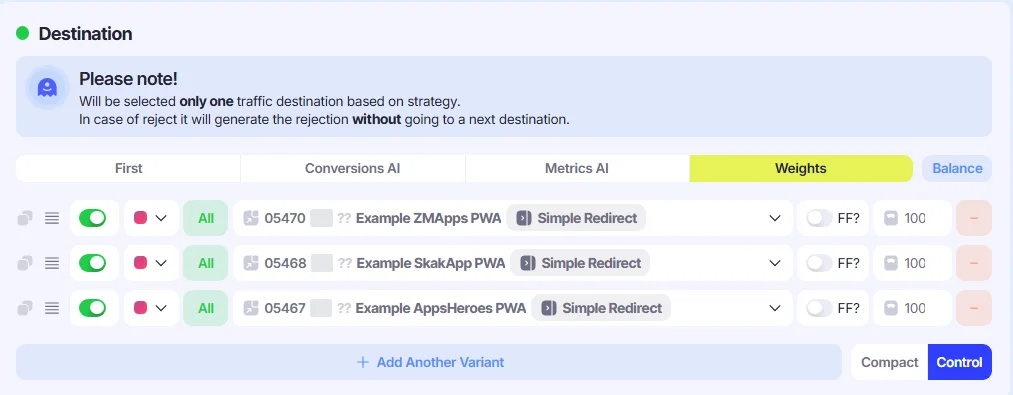
Yes, you can split as many PWA services within a single campaign as you need. Just make sure you copy the PWA links from the 3rd Party PWA Link Generator Source (as explained here) and paste them into your PWA services as offer links. The Facebook tracking link will remain a single link.
How Do I Receive Install Conversions from the PWA Service?
By default, the Install conversion is not received in AIO via a postback. Instead, it is spawned within our Flow when the visit is redirected from the PWA service to the Offer destination.