View System Logs
System Logs
- Go to Settings→Logs.

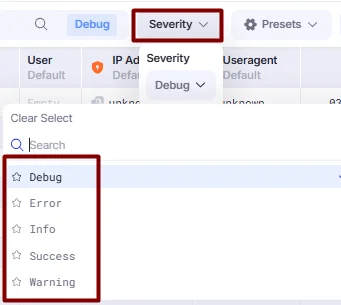
- The Logs section contains all log levels that we gather. To filter through log levels, you can use the Severity drop-down list.
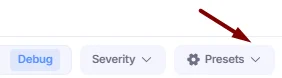
- To search by a specific UUID (e.g., Visit or Conversion UUID) or apply more targeted filters to narrow down the results, go to Presets.
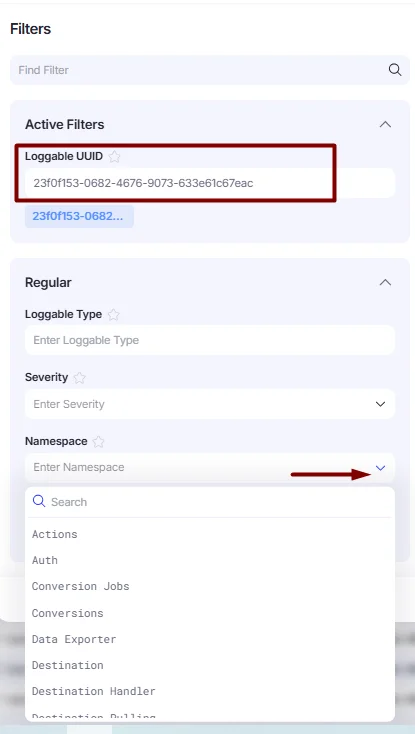
- Enter the UUID into the Loggable UUID field, and select the Namespace from the drop-down list.
The Namespace defines the type of logs you want to receive. For example:
- To check an error from a destination, use Destination Handler.
- For conversion logs, select Conversion (e.g., to see whether it was created via Conversion Spawn or received from a postback).
- The log can be viewed in the Message field. Please note that it is hidden by default and can be accessed using a 2FA code.

3-rd System and CAPI Logs
- Go to Settings→ Trackers. Right-click the desired tracker or postback and select Show Logs.
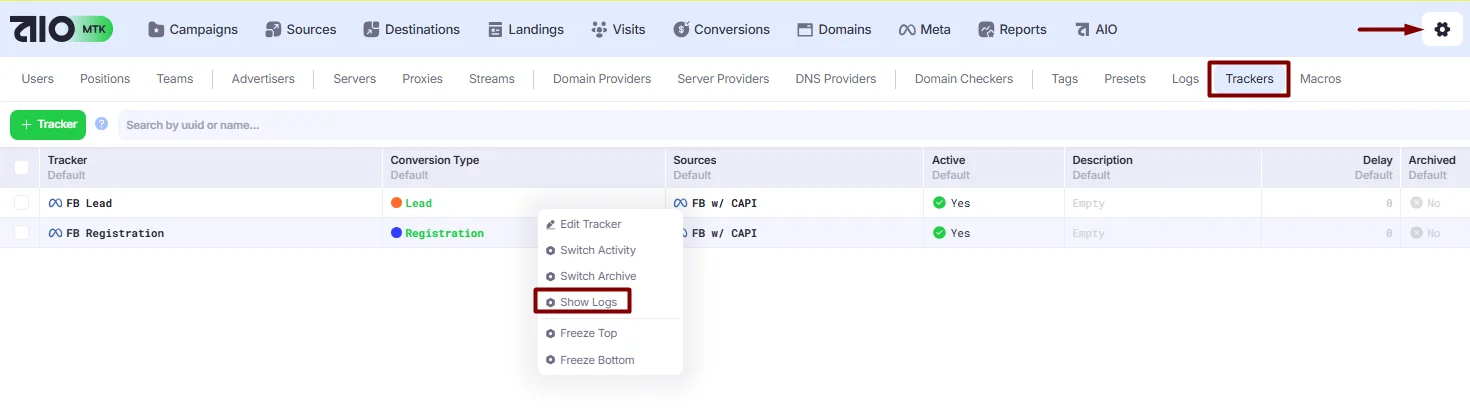
- The log can be viewed in the Message field. Please note that it is hidden by default and can be accessed using a 2FA code.

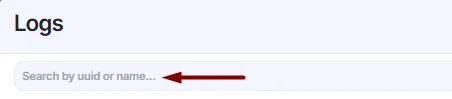
- If you need to search by a UUID, enter the conversion UUID into the search bar.