Work with Tags
What are the Tags in AIO
In the AIO platform, Tags is an excellent customizable feature that enhances the visual representation of any parameters you need to monitor in your traffic. It allows you to quickly find nearly any specific entity in the system (be it a Landing page, Campaign, Destination, Language, Country, or other), or sort the table by an individual Tag.
All the Tags in AIO belong to three categories:
- Text (string). The text Tag can include any text and number (string) value.
- Country. The country Tag must be selected from the list of existing countries.
- Language. The language Tag can include any text and number (string) value.
There are no mutually exclusive Tags. Any entity that can have a Tag can have as many Tags as needed, or no Tags at all.
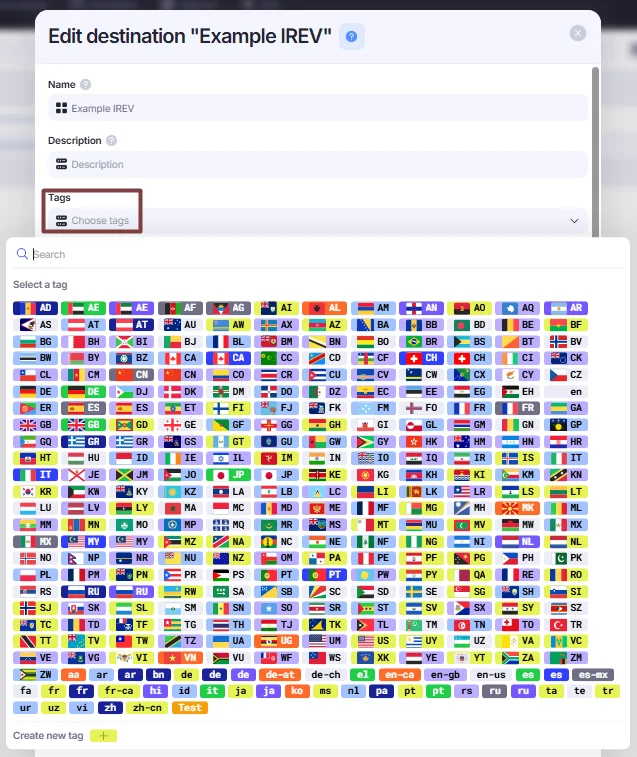
Here is an example of how the Tags look like in the Tags drop-down menu.
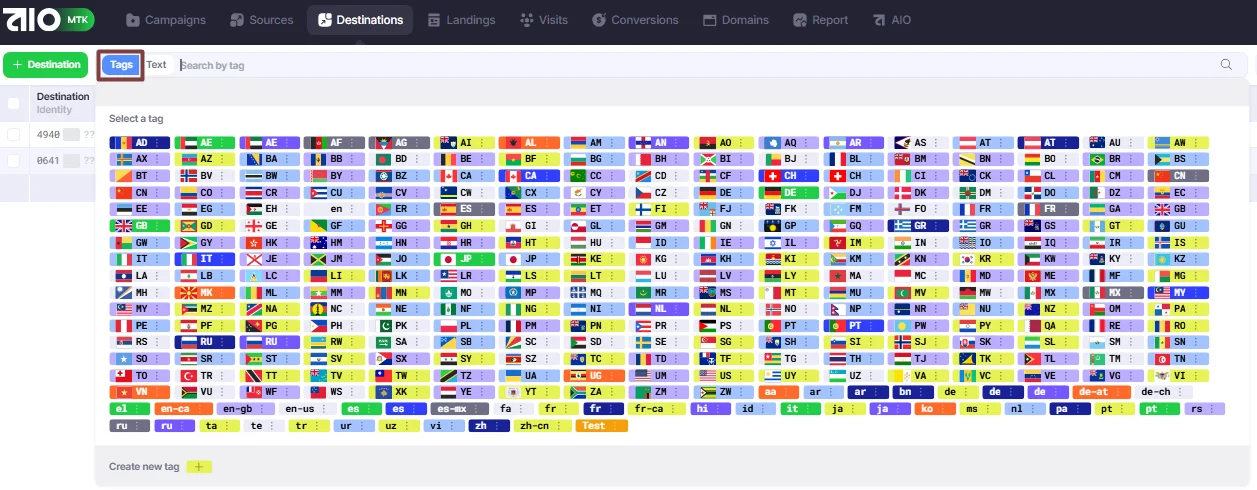
How to create Tags
Creating new tags and adding them to entities is an easy process, but it varies from one entity type to another. For example, any entity type that has a Tag option next to the search bar (e.g. Campaign, Destination, Landing, Domain) can be tagged.
- Click the blue “Tags” button to open the Tags menu.
- Click the “Create new tag” button to open the drop-down menu. Here you can select the Tag Type, and choose the Tag color. The color of a Tag is used only for your convenience, and helps to quicker find the needed Tags in the table.
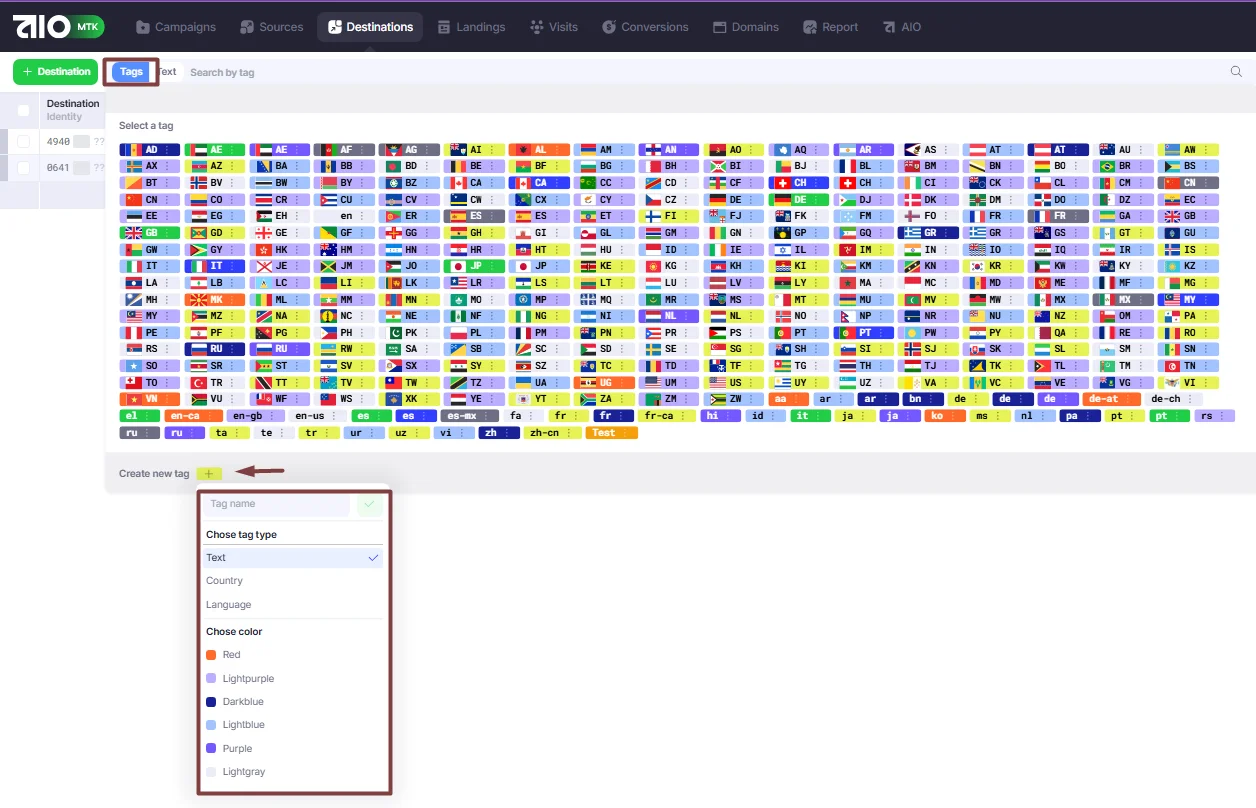
How to add Tags
Adding Tags to different AIO entities is similar, but has slight differences depending on the entity type you are adding a Tag to. To add a Tag, find the Tags field and open the drop-down menu.
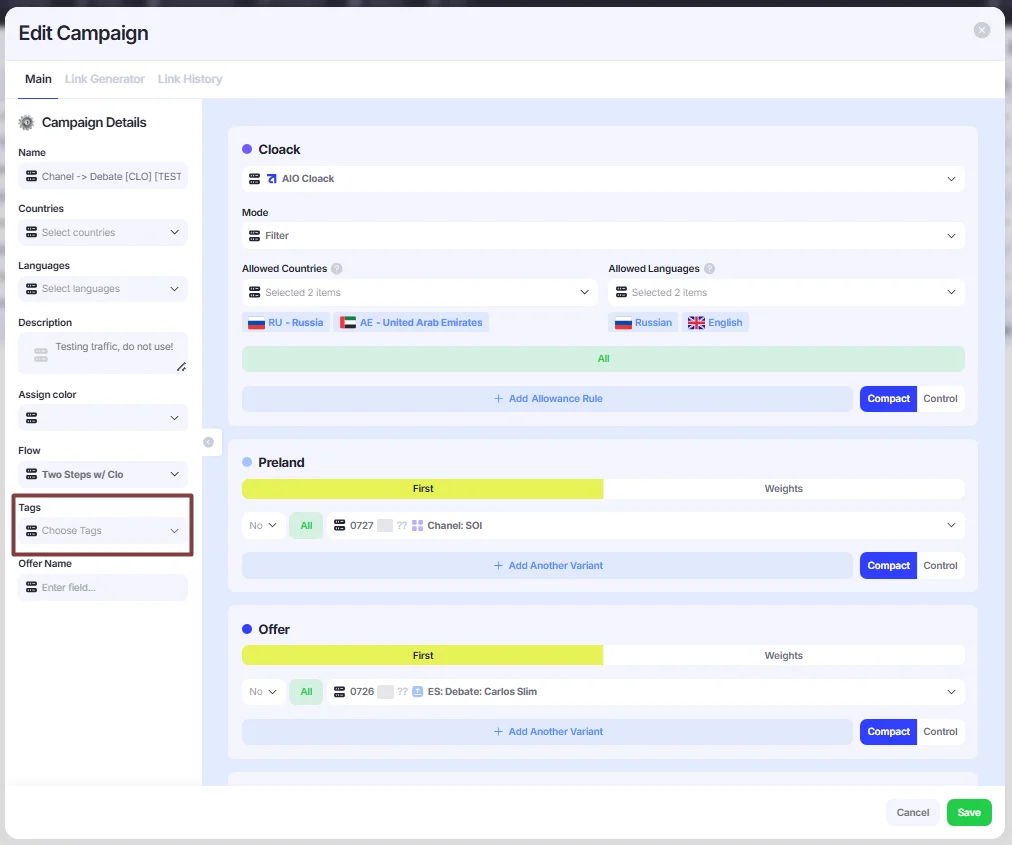
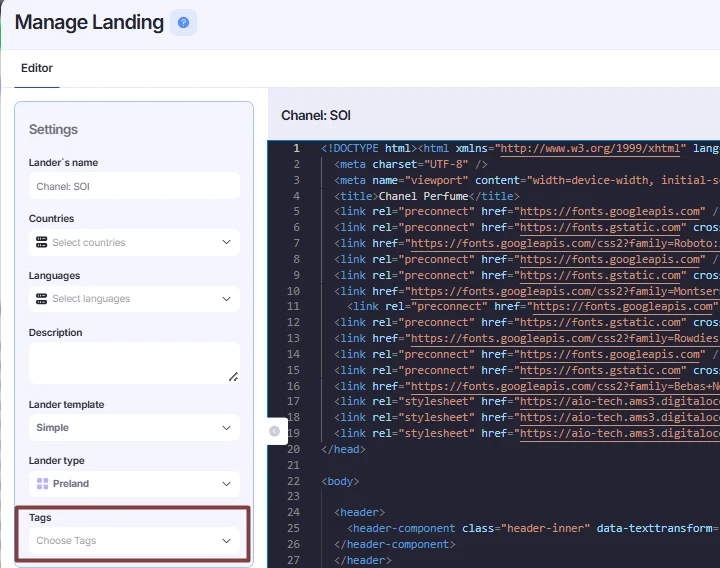
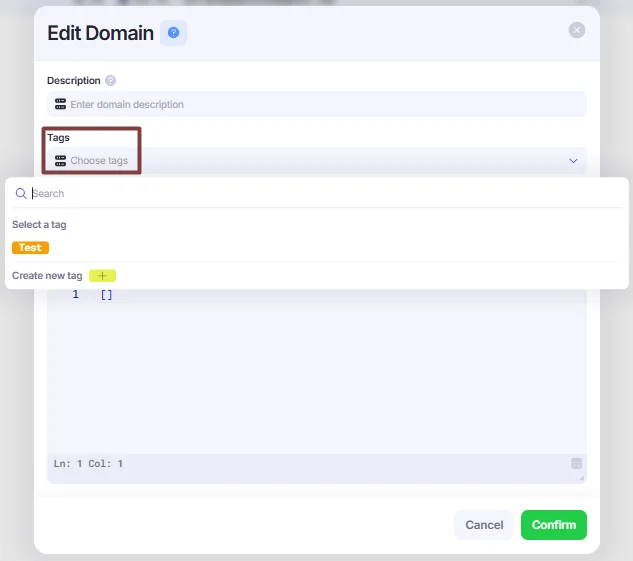
For most entities, the Tags can be added in the Edit window. Below are examples of how the Tags field appears in the Edit destination and Edit Domain windows.
Tag Groups
Tag groups allow to sort all the existing Tags by Groups to make it easier to work with them. You can create new Tag Groups (as well as individual Tags) in the Settings → Tags section.

To create a new Tag Group, open the drop-down menu, and select Manage Tag Group. Manage Tag Group window includes all the Tag Groups, and you can create new Groups by clicking the “+ Tag Group” button.
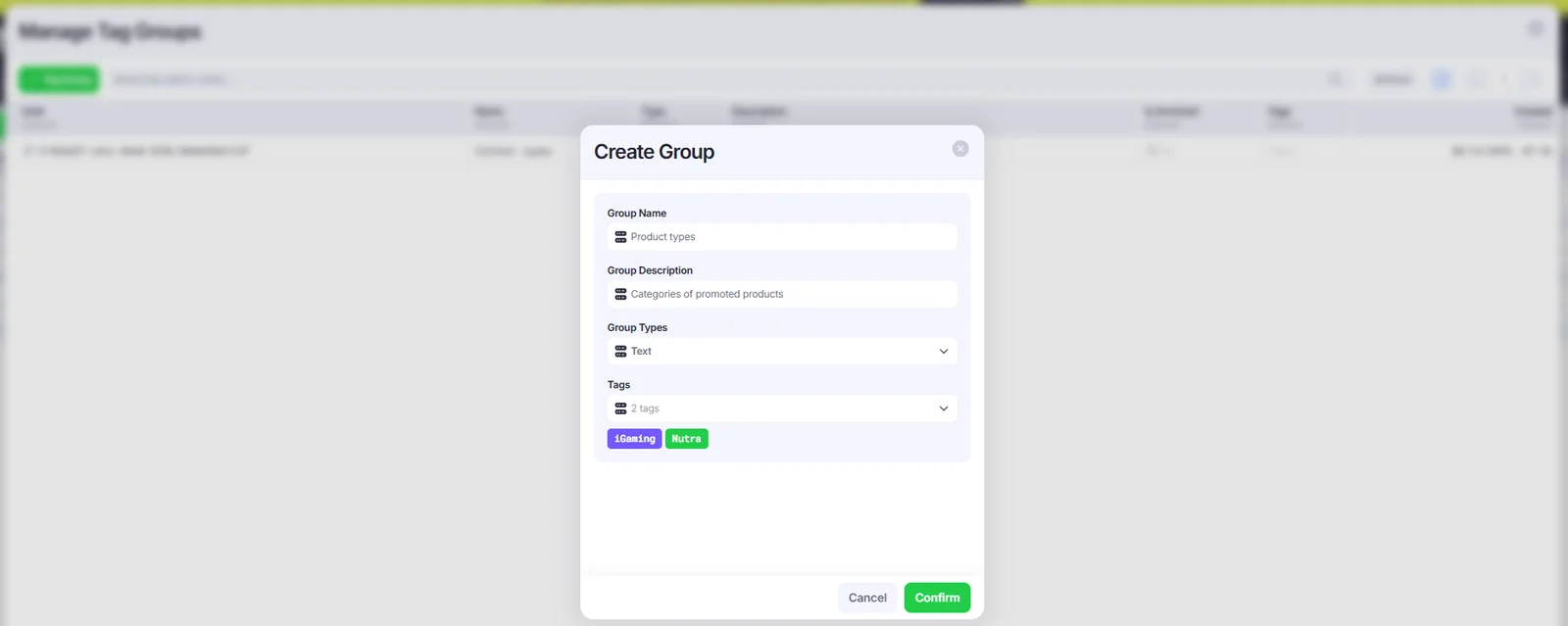
Enter the Group Name, Description, and select its Type and Tags belonging to the Group.