Set Up Notifications in AIO
Introduction
This guide will walk you through setting up notifications in AIO. You can create notifications for Slack (via a webhook URL) or Telegram (via @aio_tech_bot) for various events, such as conversion or metric alerts, Facebook account bans, destination cap alerts, or scheduled reports.
How to Set Up Notifications
1. Open the Notifications Setup Window
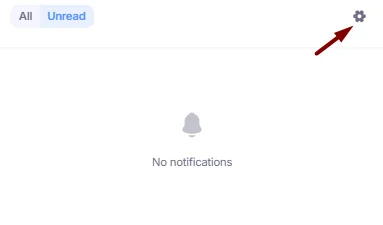
- Click the bell icon in the upper-right corner.

- Click the cogwheel icon to open the Notification Setup window.
2. Set Up Notification Channels
You can receive notifications via Telegram, Slack, or both.
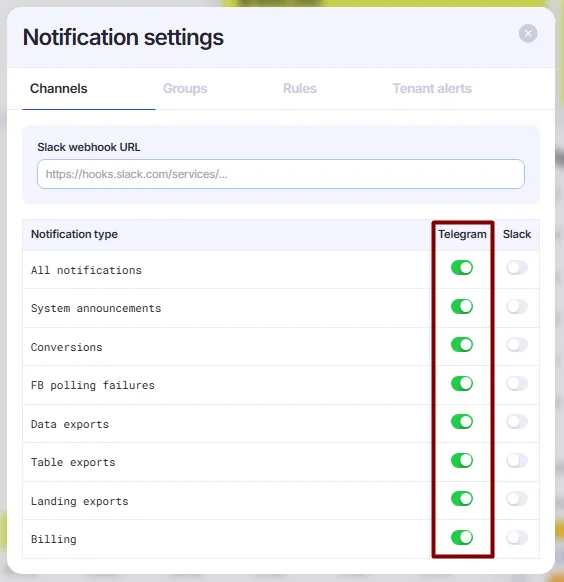
- For Telegram
Enable the notification types that you want to receive in Telegram. Notifications will be sent via @aio_tech_bot, the same bot used to receive 2FA codes, so make sure 2FA is enabled on your account.
The exact rules and notification types will be configured later; at this step, you are only selecting the notification delivery service.
- For Slack
Enter the Slack webhook URL in the Slack Webhook URL field and enable the notification types that you want to receive in Slack.
The exact rules and notification types will be configured later; at this step, you are only selecting the notification delivery service.
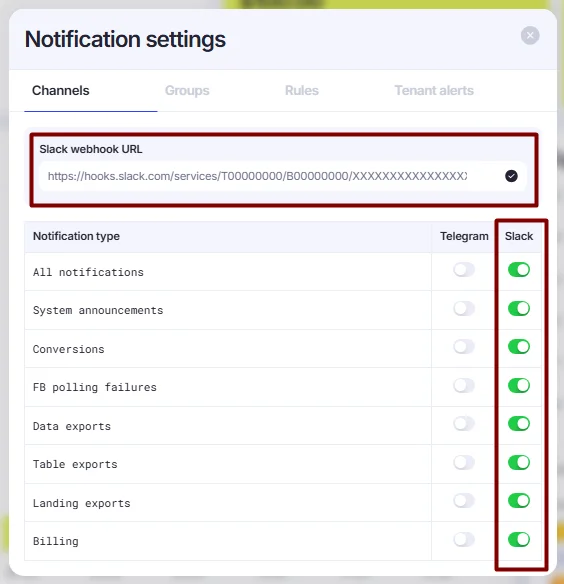
If you need help obtaining a Slack Webhook URL, refer to Slack's webhook documentation for instructions: https://docs.slack.dev/messaging/sending-messages-using-incoming-webhooks/
Send Notifications to Telegram Chats (Optional)
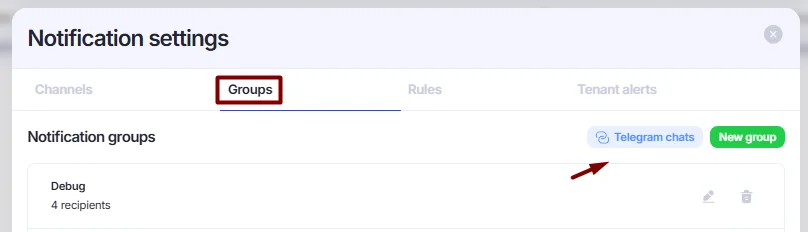
In addition to receiving notifications individually via @aio_tech_bot on Telegram, you can also send them to a Telegram chat.
- Open the Groups section and click the Telegram Chats button.
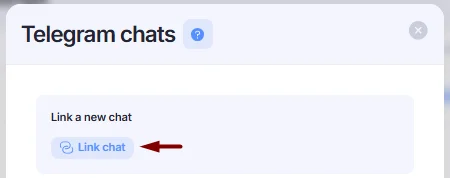
- Click Link a new chat.
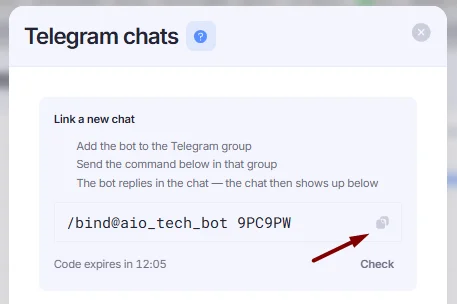
- Add @aio_tech_bot to the Telegram chat where you want to receive notifications. Make sure the bot has admin permissions in the chat.

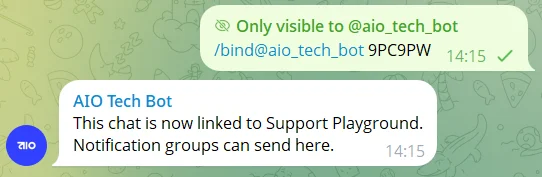
- Copy the link from the Link a new chat section and enter the command in your Telegram chat.
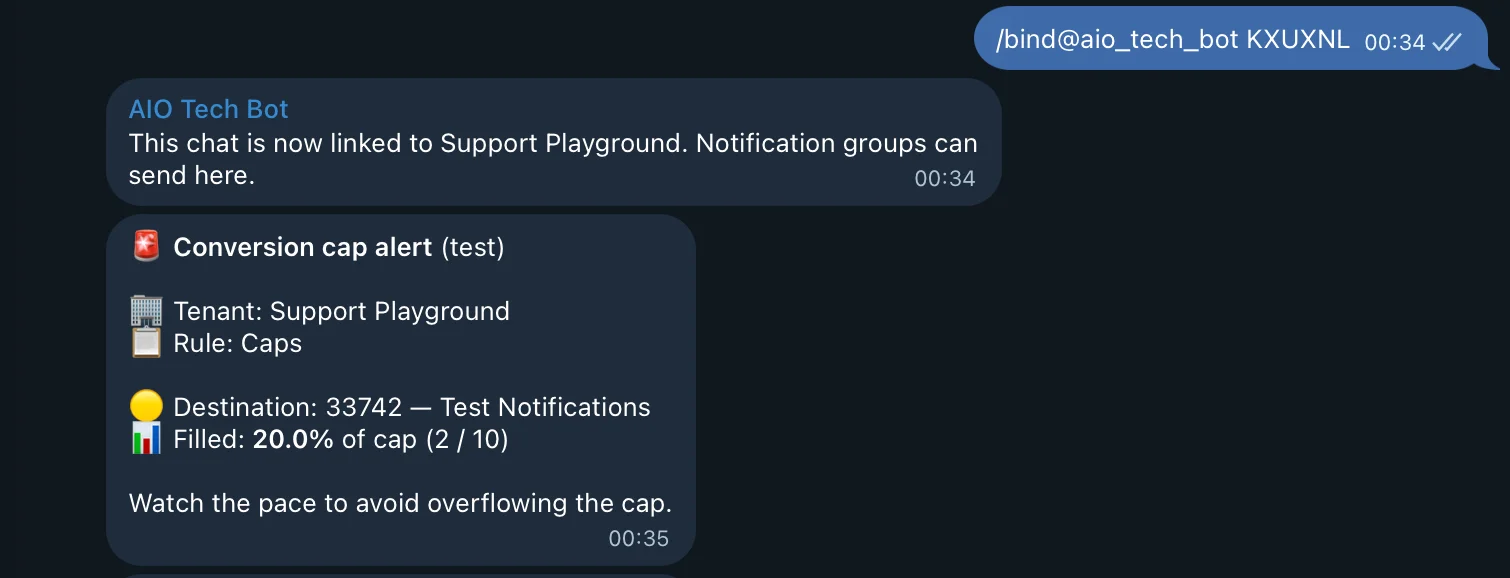
- Once the bot receives the command, it will automatically connect the chat for notifications.
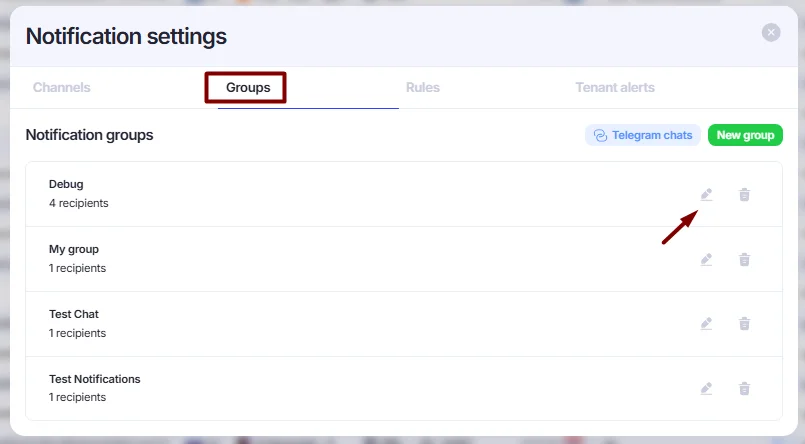
- Go to the Groups section and click the pen icon next to the group to which you want to add the connected Telegram chat. If you haven’t created any groups yet, see the Create Groups section for more information.
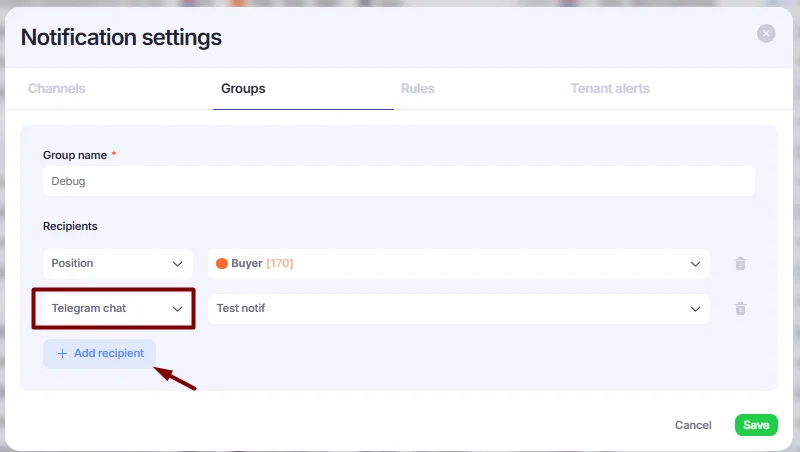
- Click the +Add Recipient button, select Telegram Chat as the recipient type, and select the desired chat from Groups → Telegram Chats.
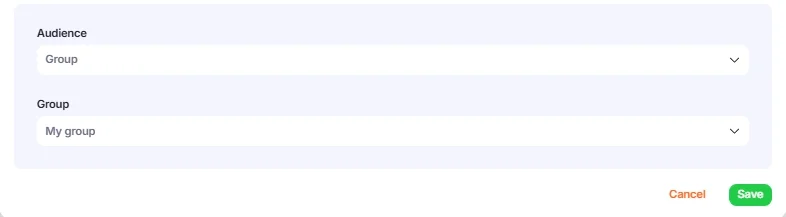
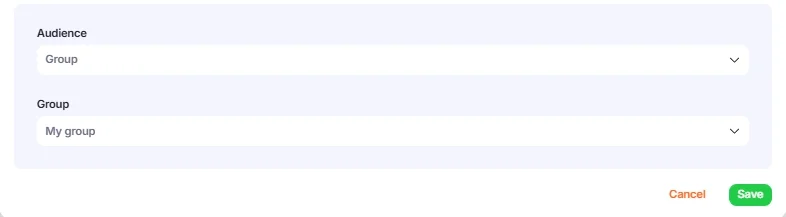
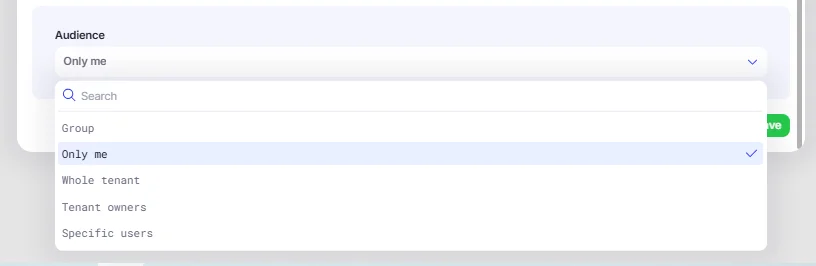
- Add the group to any of the Rules or Tenant Alerts sections under Audience → Group. If you haven’t created any rules yet, see the section Set Up Notification Rules.
3. Set Up Notification Rules
Now let's configure the notifications that you will receive in Slack or Telegram.
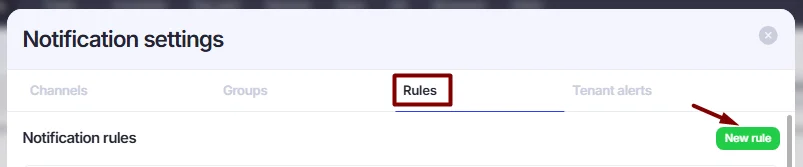
- Go to the Rules section and click the New Rule button.
- Enter any name and select the notification trigger type from the Trigger Type section. The selected trigger type determines which event will trigger the notification.
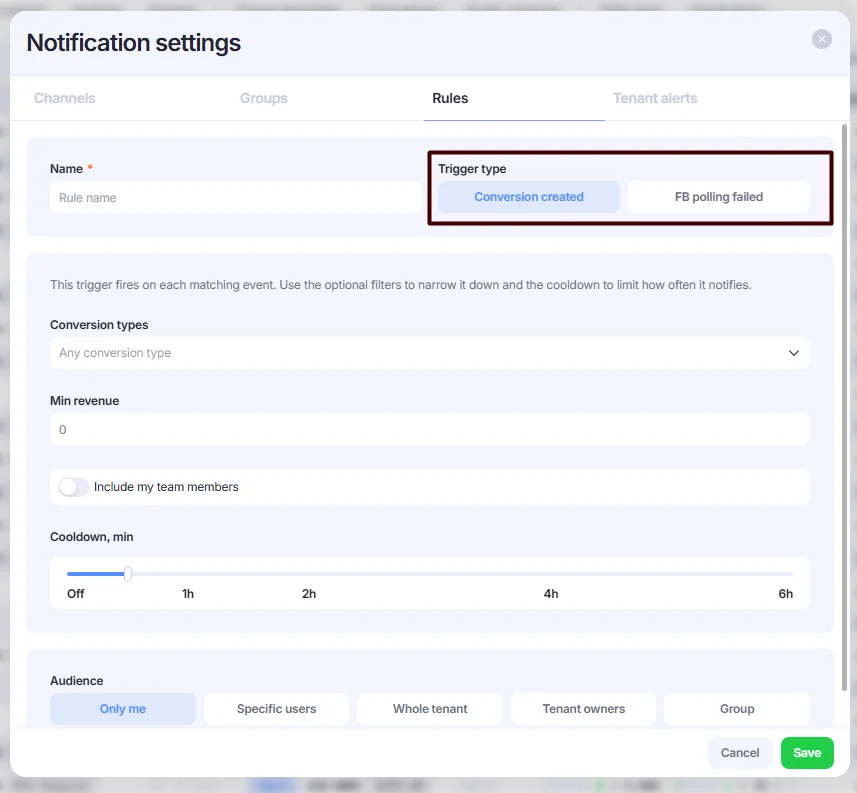
Trigger Types:
Conversion Created
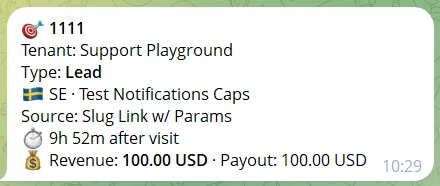
Use this trigger type to receive notifications about new conversions.
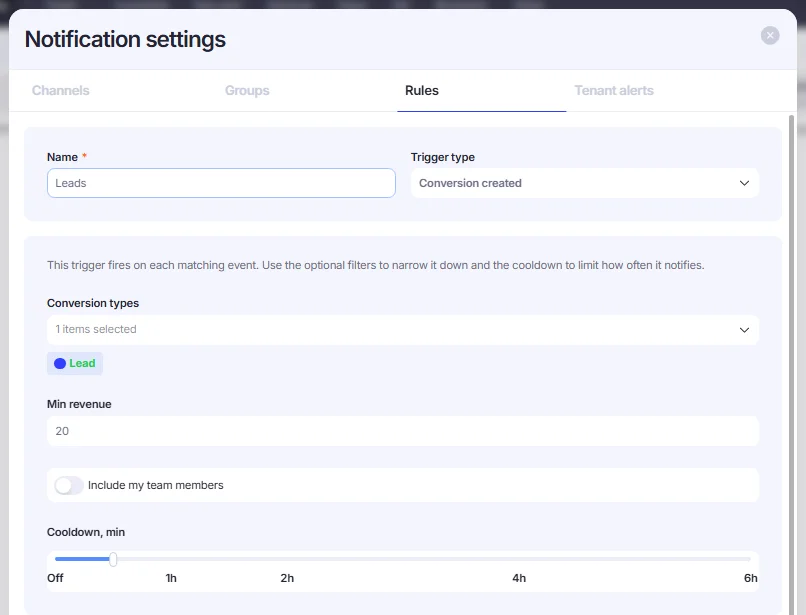
- Conversion Types— select the conversion types for which you want to receive notifications.
- Min revenue— select the minimum revenue that a conversion must contain to trigger the notification.
- Include My Team Members — enable this toggle if you are a team leader or team head and want to receive notifications about your team members' conversions.
- Cooldown, min — set a cooldown period between notifications, or leave it Off to receive the notification immediately after a conversion is created.
- Audience — select the users who will receive the notifications. You can also create custom groups (see the Create Groups section for more details).
FB Pulling failed
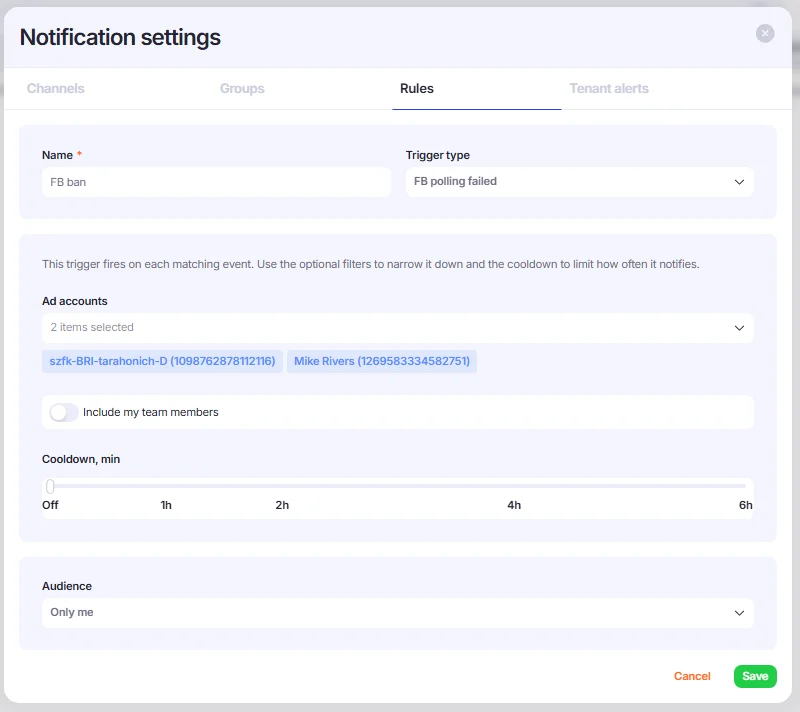
Select this trigger type to receive notifications when pulling for your ad accounts fails.
- Ad Accounts—select the ad accounts for which you want to receive notifications.
- Include My Team Members — enable this toggle if you are a team leader or team head, and want to receive notifications about your team members' ad accounts.
- Cooldown, min — set a cooldown period between notifications, or leave it Off to receive the notification immediately after it’s triggered.
- Audience — select the users who will receive the notifications. You can also create custom groups (see the Create Groups section for more details).
Tenant Alerts
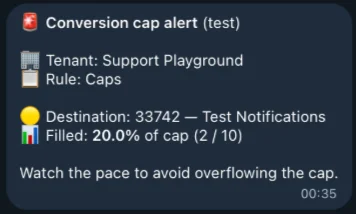
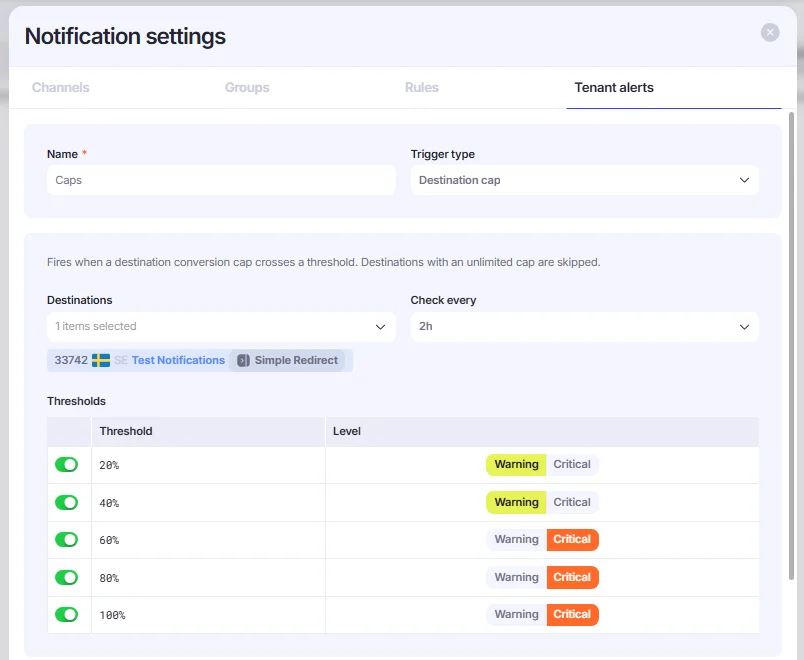
You can create notifications for conversion cap alerts.
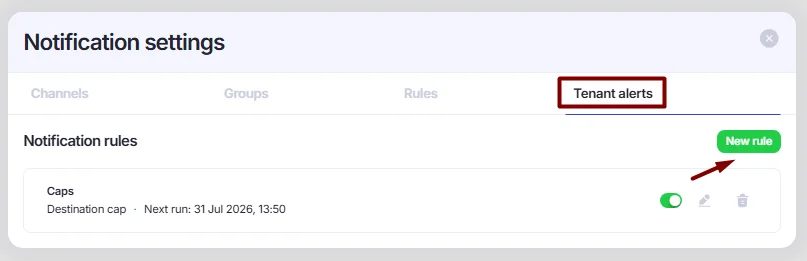
- Open the Tenant Alerts section and click the New Rule button.
- Fill in the following fields:
- Destinations — select the Destinations for which you want to monitor the caps.
- Check Every — define how often the caps should be checked.
- Threshold — enable the cap percentage that should trigger a notification and select the alert level: Warning or Critical.
- Audience— select the users who will receive the notifications. You can also create custom groups (see the Create Groups section for more details).
4. Create Groups (Optional)
In addition to sending notifications to specific users (or the entire Tenant), you can create custom groups of notification recipients.
- Open the Groups section and click the New Group button.
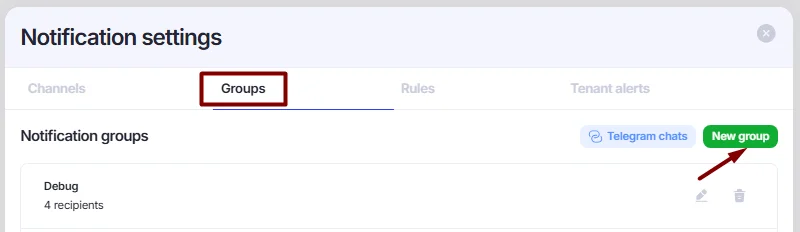
New group button in Groups section. - Enter a group name and select the desired users from the drop-down list.
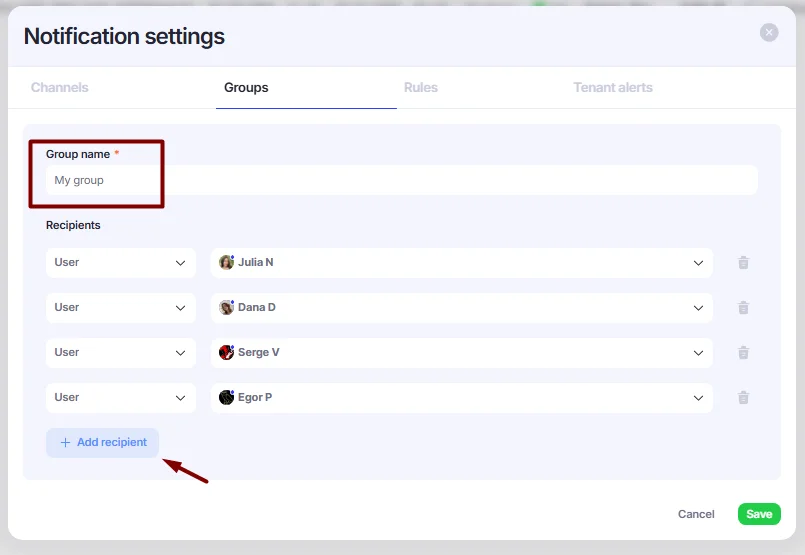
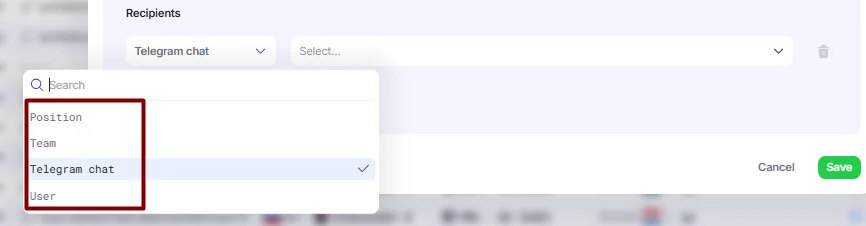
In addition to users, you can select Teams, Positions, or Telegram Chats as notification recipients (see the “Send Notifications to Telegram Chats” section).
- Click Save to save the group. It will then be available in the Rules or Tenant Alerts sections → Audience → Group.